Enhancing your experience on Provider.Evernorth.com: Latest updates and security reminders for behavioral care providers

May 5, 2026

As a dedicated health care provider, your focus is on delivering exceptional care to your patients. To assist you in this important mission, we’ve curated recent enhancements and essential reminders to help you optimize your workflow on the Evernorth® Provider portal (Provider.Evernorth.com), while ensuring your interactions remain secure and efficient.

Exciting enhancements for improved workflow

We are committed to continually enhancing your experience on Provider.Evernorth.com. Here are some of the latest features designed to simplify your day‑to‑day operations.

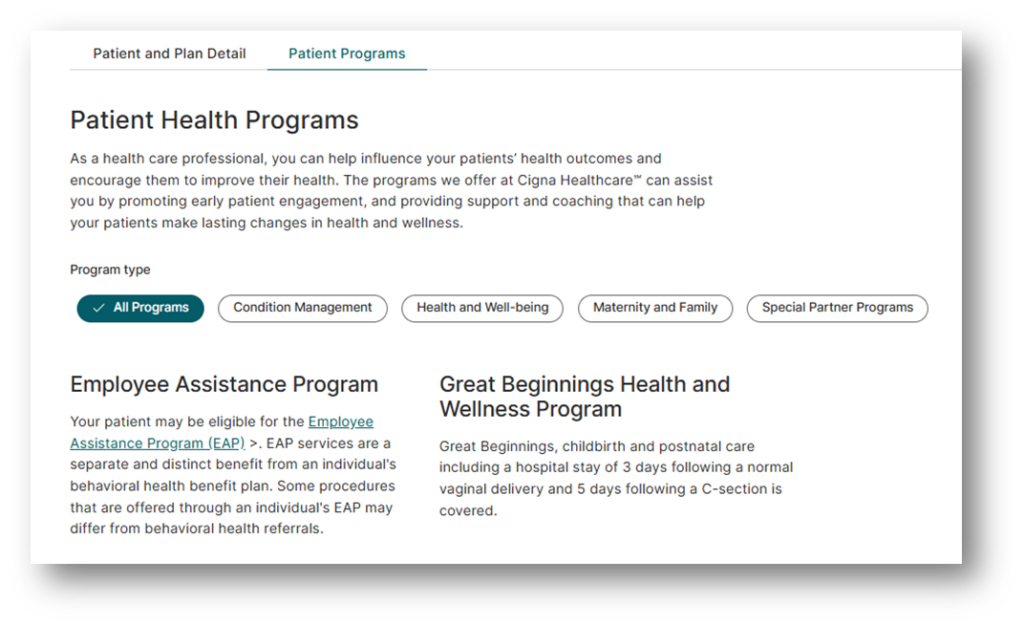
  • New Patient Programs tab. A dedicated Patient Programs tab is now conveniently located within the patient’s Coverage Details page, providing easy access to health and wellness programs your patients may be eligible for.
  • More efficient Manage User Access page. This page is used by website access managers to manage their users’ access to Provider.Evernorth.com. They can now search by username, filter users by status or Taxpayer Identification Number (TIN), and edit access for up to 25 users at one time.

Note: If you do not see these enhancements, check your entitlements. Go to Settings & Preferences by hovering over your name in the top-right corner when logged in to Provider.Evernorth.com. Select Online Access; click View access rights. Select a TIN from the drop-down menu to view the entitlements assigned to you for that TIN. If you need additional entitlements, please contact a website access manager listed at the bottom of that screen.

Key practices for a secure portal experience

To navigate Provider.Evernorth.com securely, it’s important to follow key access protocols and security practices. Consider these essential points.

  • Individual access. Each username is intended for a single user; shared accounts are not permitted. This policy is in place to safeguard your data and maintain security integrity.
  • Access to vital portal functions. To gain access to critical portal functions – such as checking eligibility and benefits, submitting and viewing precertifications, viewing claims, and submitting reconsideration requests – each provider TIN must be assigned to a website access manager. Please call our Internet Customer Service Advocate team at 800.736.7499 for assistance if your TIN does not have an assigned website access manager.
  • Multi‑factor authentication (MFA) codes. Each login attempt requires an MFA code, which can be received via email or SMS text message based on your preference set during registration.
    • If you’re set to receive codes via email but do not see them, check your spam folder or consult your IT department to ensure the sending address is not being blocked. Consider changing your preference to receive the MFA code via an SMS text message or update your email address. You may also ask your IT department to add the following email addresses to your organization’s safe list: NoReply@Universal.Account.Evernorth.com and DoNotReply@ProviderNotification.Evernorth.com
    • You can change how you access MFA codes in Settings & Preferences (hover over your name in the top-right corner when logged in to the portal).
  • User access audits. Regular review of the Delegation History Report by website access managers is essential to ensure all users maintain appropriate access levels. Access the report by logging in to Provider.Evernorth.com > My Practice With Cigna > Delegation History Report.

How are we doing?

Please let us know what you think of the Provider Newsroom information and news.

Contact Us